Billing
Akave Cloud lets you choose how your billing account pays invoices. You can use a saved card or bank payment method for automatic charges, or switch to crypto payments and pay invoices manually.
Prerequisites
- Akave Cloud account
- Sign in to Akave Cloud.
- Billing account
- Your workspace must have billing enabled.
- Payment method
- To use automatic card or bank payments, add at least one payment method.
- To use crypto payments, you do not need to add a card.
Open Payment Method Settings
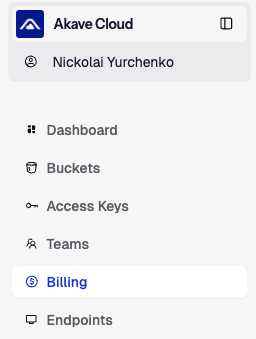
- In Akave Cloud, open Billing from the sidebar.
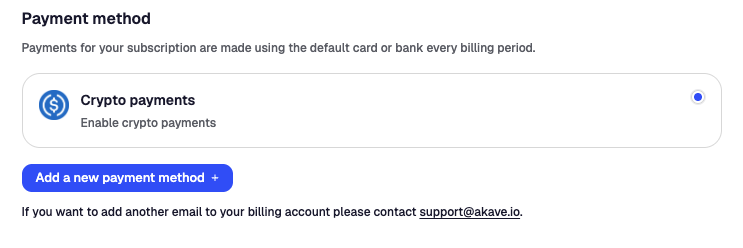
- Locate the Payment method section.
This section lists saved cards or bank payment methods and the Crypto payments option.
Manage Payment Methods
Add a Card or Bank Payment Method
- In Payment method, click Add a new payment method.

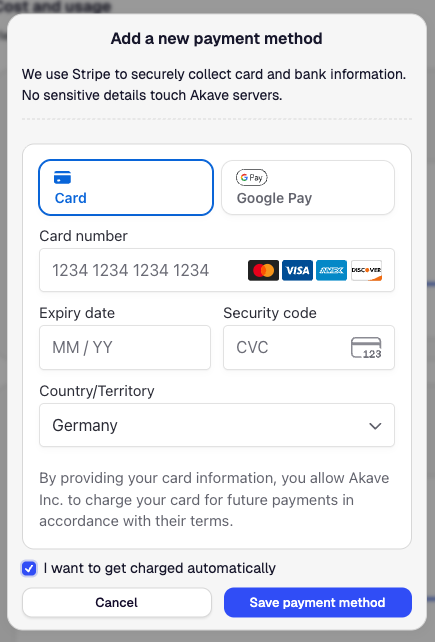
- In the payment method modal, enter your card or bank details.
Akave Cloud uses Stripe to securely collect and store payment method details. Akave Cloud does not store full card numbers.
- Confirm the payment method.
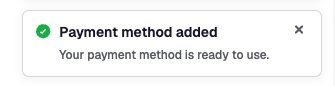
When setup succeeds, Akave Cloud closes the modal and shows a success notification.
- Confirm that the payment method appears in the Payment method list.
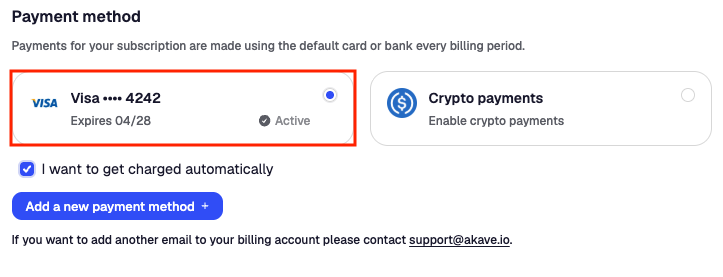
Switch to Automatic Card or Bank Billing
Select a saved payment method to enable automatic charges.
- In Payment method, find the saved payment method you want to use.

- Select the payment method.
Akave Cloud marks the selected method as the default payment method.
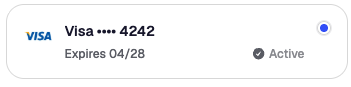
- Make sure I want to get charged automatically is selected.

When the update succeeds, Akave Cloud shows a success notification. Future billing periods use the selected default payment method.
Switch to Crypto Payments
Use this flow when you want to receive invoices and pay manually with crypto.
- In Payment method, select Crypto payments. Akave Cloud marks it as the active payment method and turns off automatic charges.
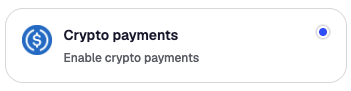
When the update succeeds, Akave Cloud clears the default card or bank payment method for billing and switches invoices to manual payment.
Toggle Automatic Charges
You can enable or disable automatic charges using the checkbox under the payment methods.
To enable automatic charges:
- Select a saved card or bank payment method.
- Check I want to get charged automatically.
To disable automatic charges:
- Clear the I want to get charged automatically checkbox.

Remove a Saved Payment Method
-
In Payment method, find the saved card or bank payment method you want to remove.
-
Click the Remove button next to the payment method.

- In the confirmation modal, click Yes, I am sure.
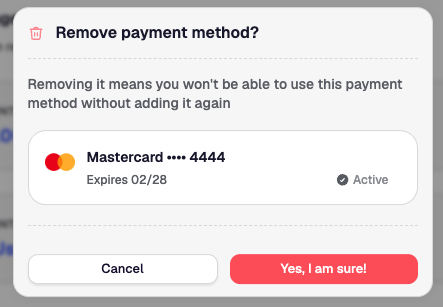
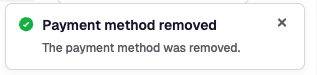
When removal succeeds, Akave Cloud shows a success notification and removes the payment method from the list.
After Changing Payment Method
After changing your payment method, you can:
- Review your current usage in Billing.
- Download invoices from the Payment history section of the billing page.
- Add another payment method for backup billing.
- Contact support if you need another email added to your billing account.