Bucket Management
Buckets are the primary storage containers in Akave Cloud. Create a bucket before uploading files, connecting S3-compatible tools, or using Akave as a storage target for integrations.
Prerequisites
- Akave Cloud account
- Sign in to Akave Cloud.
- Access Key
- You need at least one Access Key before creating a bucket.
- If you do not have one yet, create it from Access Keys in the Akave Cloud sidebar.
Bucket Creation
Create a Bucket
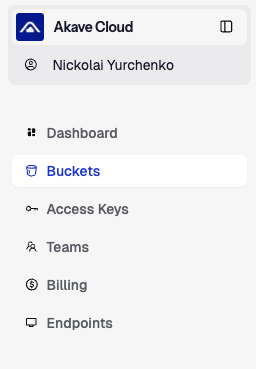
- In Akave Cloud, open Buckets from the sidebar.
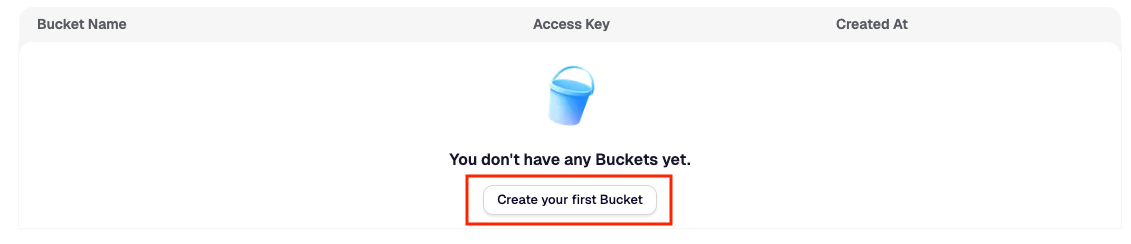
- Then click Create new Bucket.

If this is your first bucket, you can also click Create your first Bucket from the empty state.
- In the Create Bucket modal, enter a bucket name.
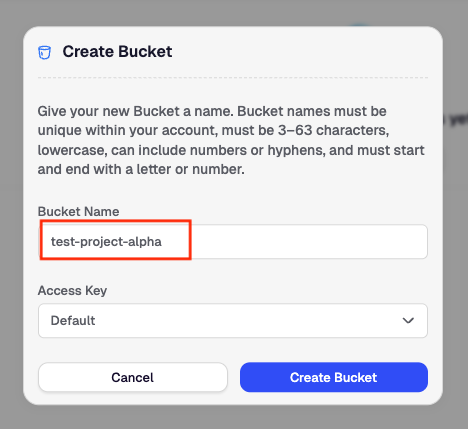
Bucket names must:
- Be globally unique across the Akave Cloud instance.
- Be 3-63 characters long.
- Use lowercase letters, numbers, or hyphens.
- Start and end with a letter or number.
For example:
test-project-alphaInvalid examples:
-test-bucket      (starts with hyphen)
MyBucket         (contains uppercase)
my_bucket        (contains underscore)
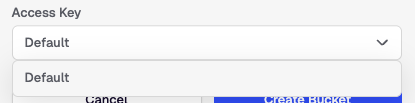
ab (too short, under 3 characters)- Select the Access Key that should own the bucket.
- Click Create Bucket.
Akave Cloud closes the modal and shows a Creation scheduled notification while the bucket is being created in the background.
- Wait for the final notification.
When creation succeeds, Akave Cloud shows a Bucket created notification and the bucket appears in the bucket list.
If creation fails, Akave Cloud shows an error notification. Common errors include:
- Bucket name already exists — Choose a different unique name.
- Invalid characters — Use only lowercase letters, numbers, and hyphens.
- Name too short or too long — Must be between 3-63 characters.
Verify the Bucket
After the bucket appears in the table, confirm these values:
- Name: The bucket name you entered.
- Created At: The creation timestamp.
- Access Key: The Access Key associated with the bucket.

After Creating a Bucket
After creating a bucket, you can:
- Open the bucket and upload files.
- Use the selected Access Key with an S3-compatible client.
- Connect the bucket to an integration that supports S3-compatible storage.
Bucket Search
Use bucket search in Akave Cloud to quickly find buckets by bucket name or by the Access Key associated with them.
Search Buckets
- Open Buckets from the sidebar.
- Locate the Search field above the bucket list.
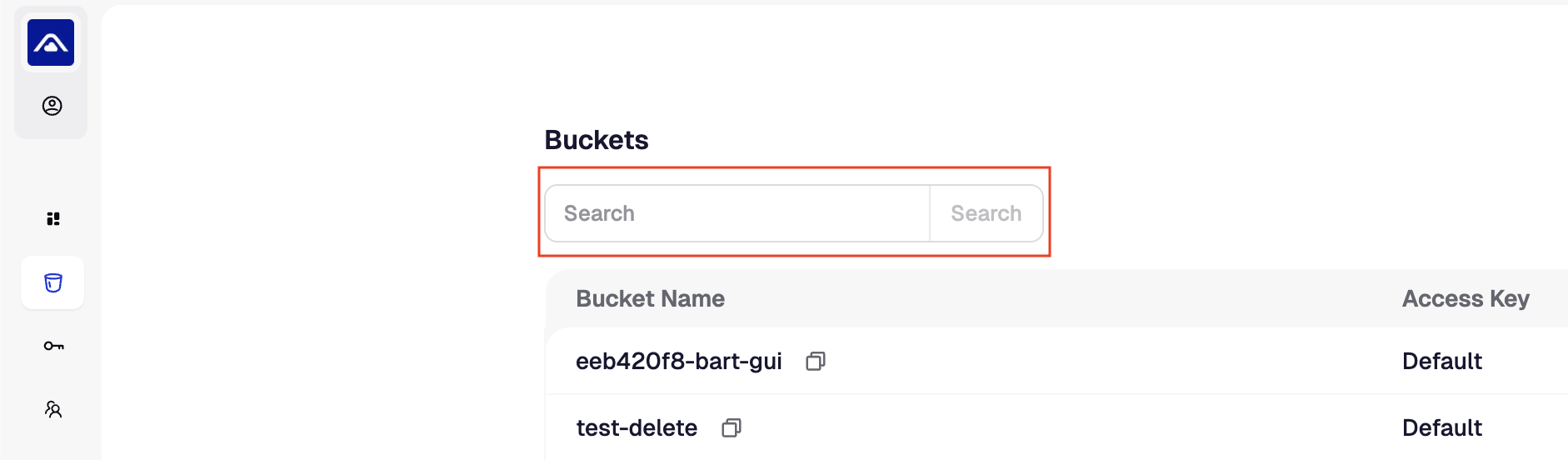
- Enter a bucket name or part of a bucket name.
Search is case-insensitive and updates the bucket list as you type.

- You can also search by the Access Key associated with a bucket.
This is useful when you have multiple Access Keys and want to find buckets created with a specific key.
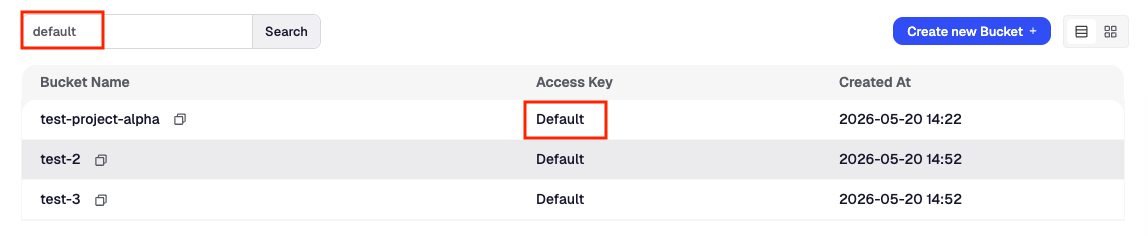
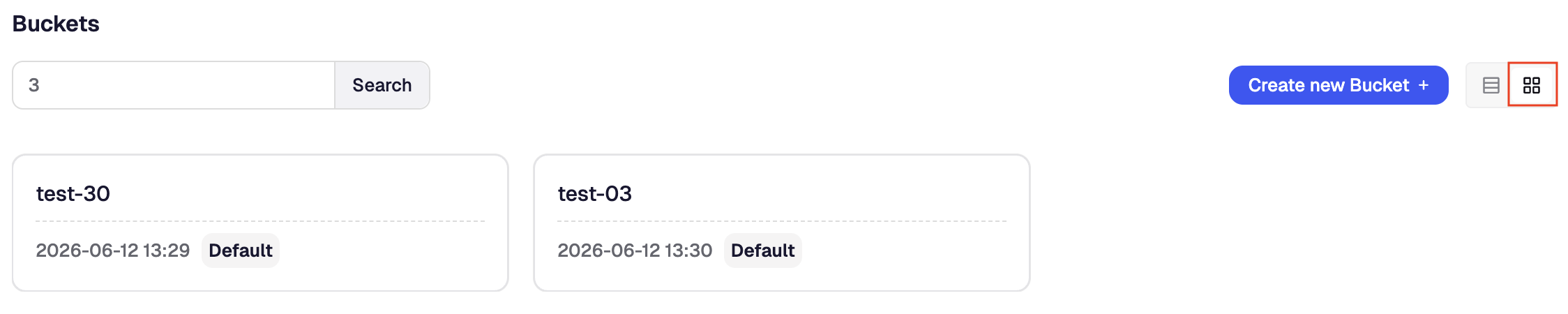
- Review the filtered results.
Matching buckets remain visible in the table or grid, depending on your selected view.

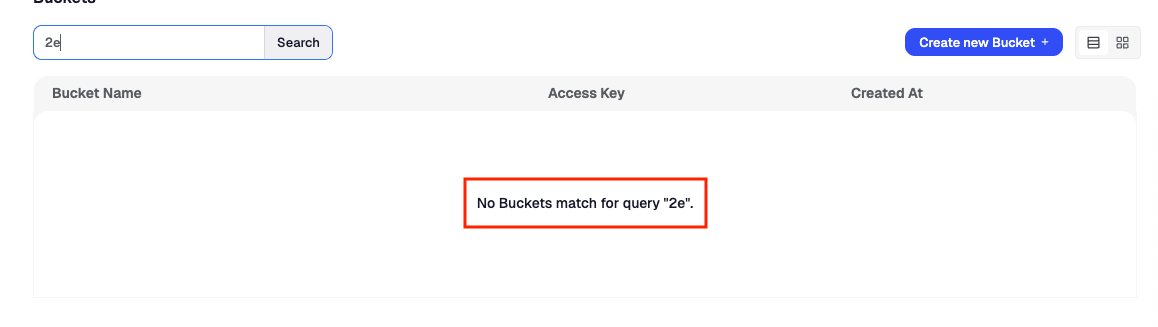
- If no buckets match your search, Akave Cloud shows an empty search result.
Clear Search
To return to the full bucket list, remove the text from the Search field.
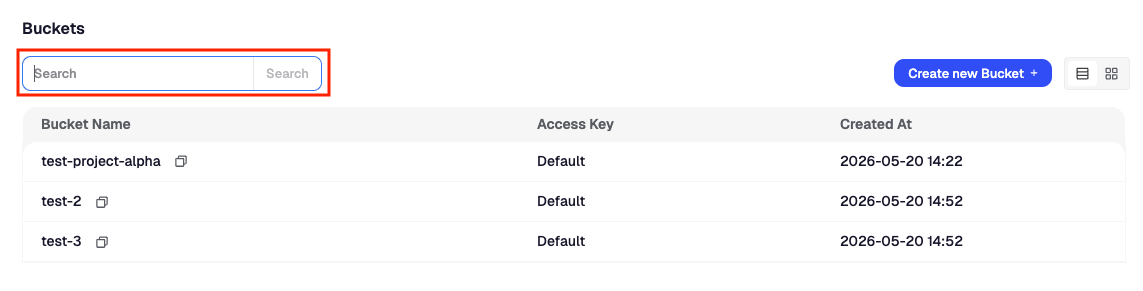
Searchable Fields
Bucket search currently matches:
- Bucket Name
- Access Key
After Finding a Bucket
Once you’ve located a bucket, you can:
- Open the bucket to view or upload files.
- Copy the bucket name from the bucket row.
- Confirm which Access Key is associated with the bucket.